
Hotspot Helper
A Laupin app — sideload distribution
Automatically enable your Android Wi-Fi hotspot when a paired Bluetooth device (your car, your laptop, a portable speaker) connects, and optionally disable it again when the device disconnects. Runs as a background automation so you never have to dig through Quick Settings to flip the hotspot on.
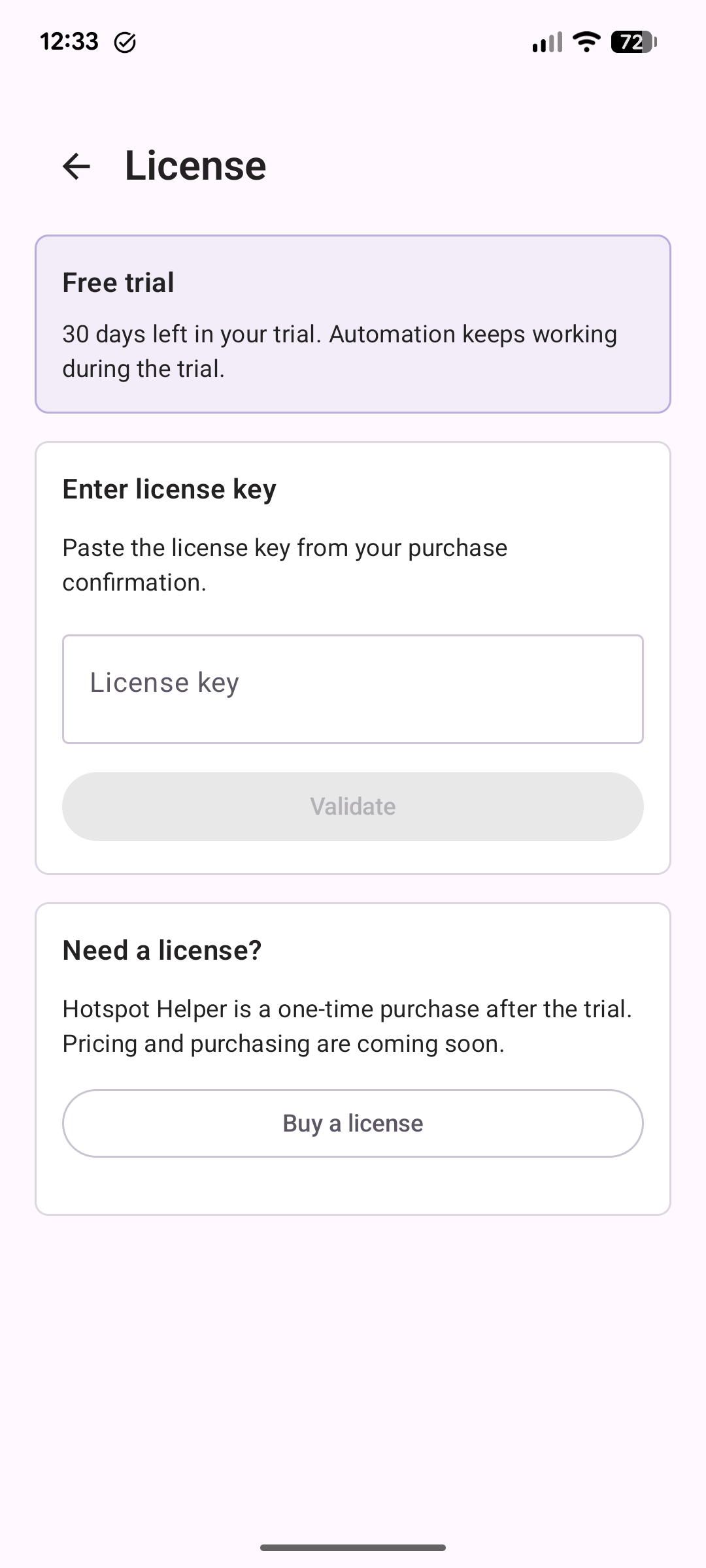
Hotspot Helper is free to try for 30 days. After that, a one-time $10 license keeps the automation running. See Buy a license below.
Requirements
- Android 8.0 (API 26) or newer. Tested on Android 16.
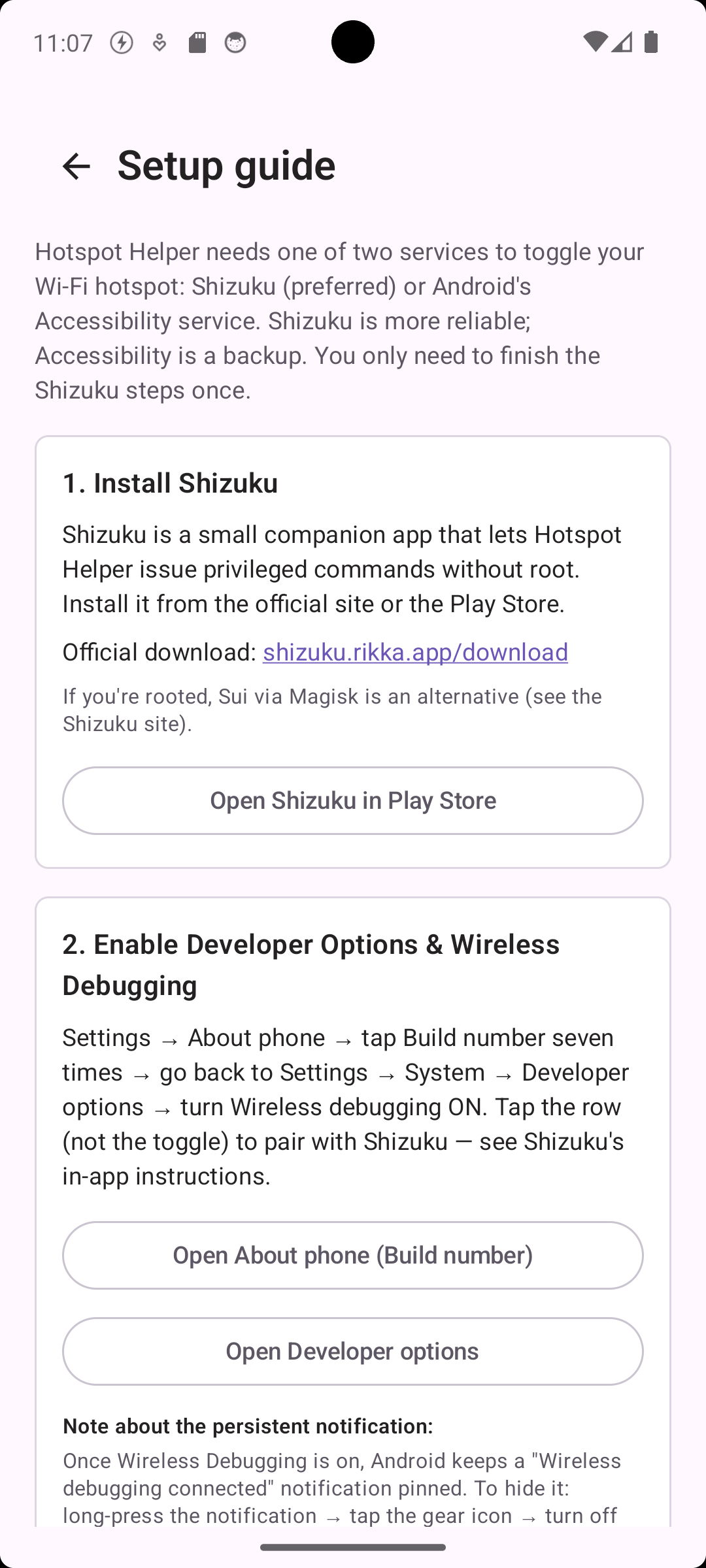
- Shizuku running on the same device. The app's setup guide includes a one-tap link to install it from the Play Store or rikka.app.
- Developer Options → Wireless Debugging enabled. The setup guide deep-links to the right screen.
- A paired Bluetooth device you want to use as the trigger.
Screenshots
Installing
1. Allow installs from your browser
Android requires you to grant permission to whatever app is doing the install (typically your browser). Open Settings → Apps → Special app access → Install unknown apps, find the browser you'll use to download, and turn Allow from this source on. You only need to do this once.
2. Download and install
Tap the Download the APK button above on your Android device. When the download finishes, open it to install. The system installer will show the app's name and the permissions it requests.
3. Set up Shizuku
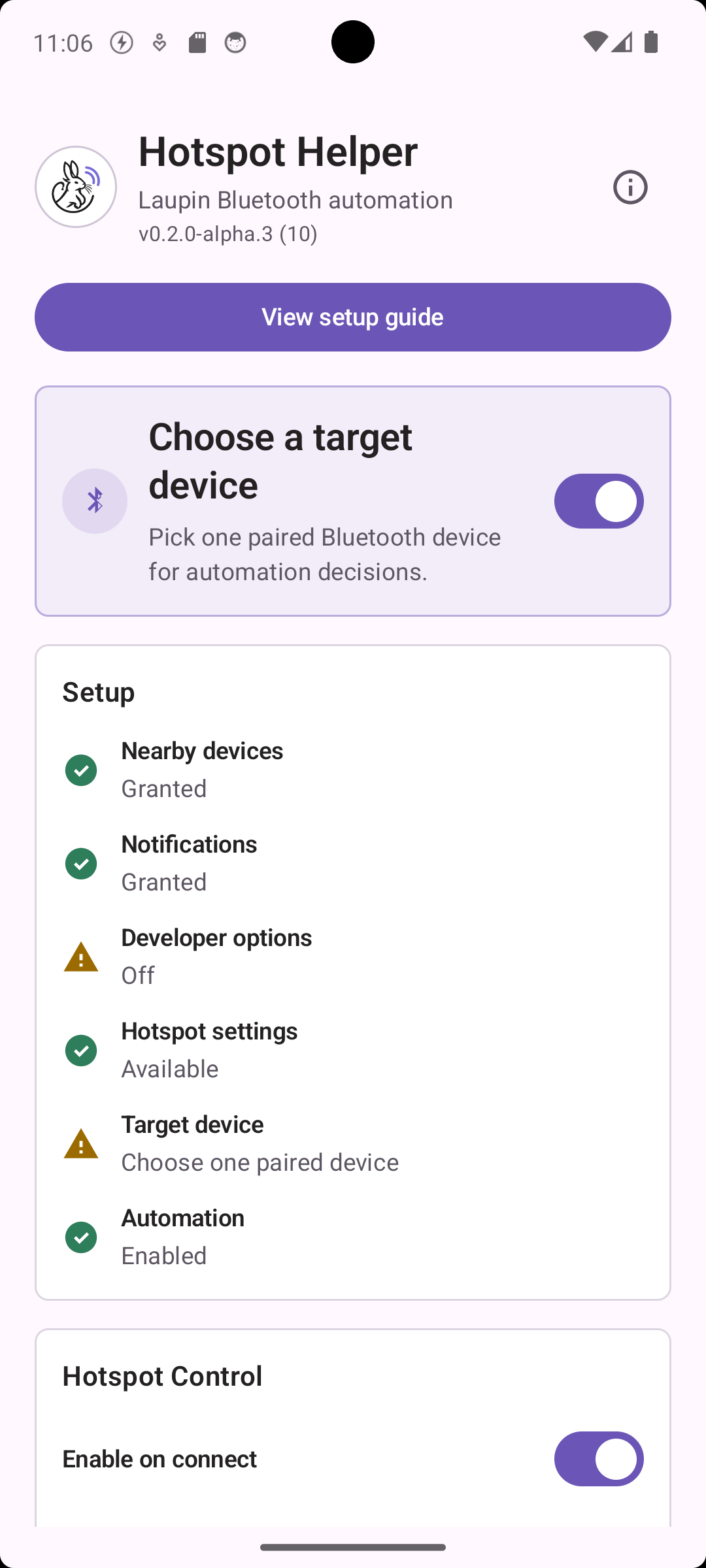
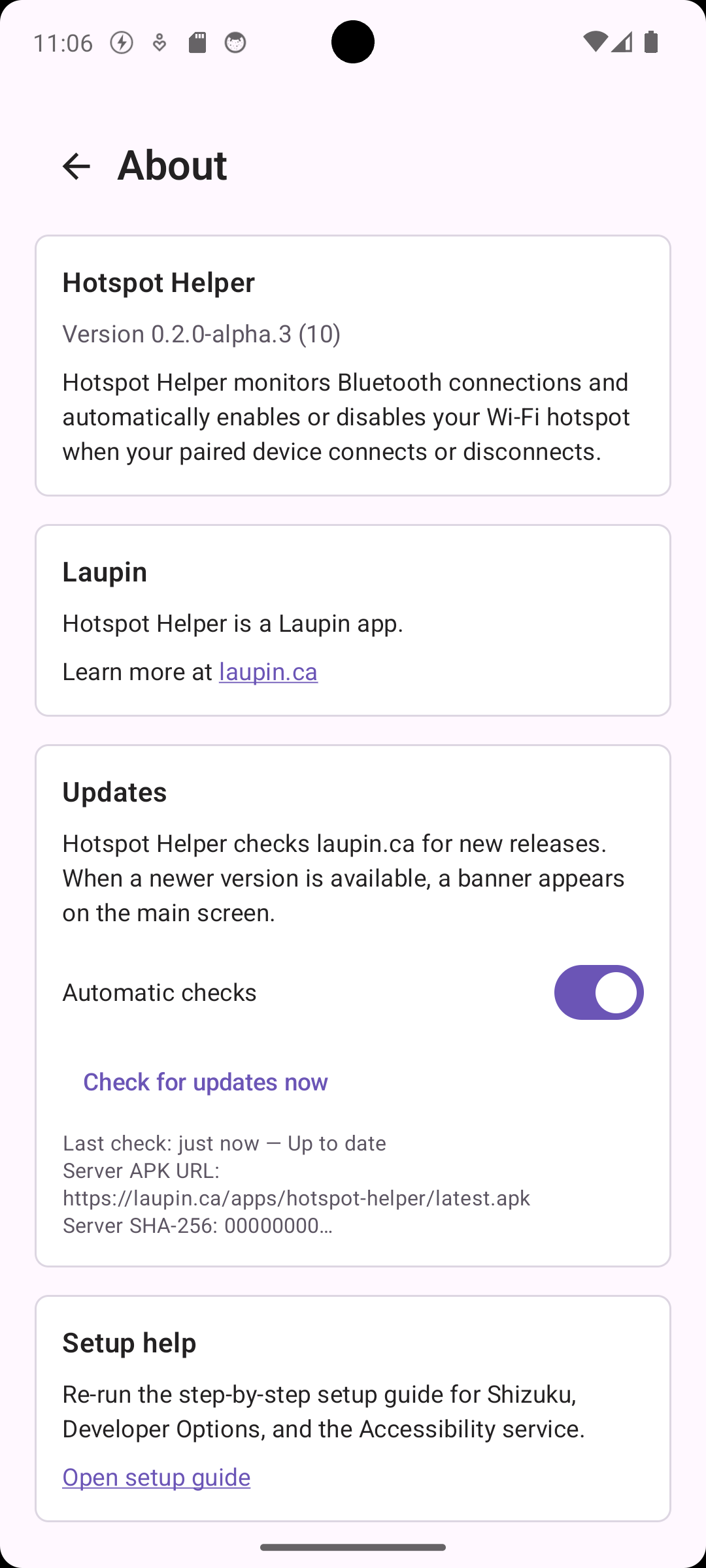
Open Hotspot Helper. On first run, tap View setup guide. It walks you through installing Shizuku, enabling Wireless Debugging, pairing it, and granting Hotspot Helper permission to use it. The guide is also reachable from About → Setup help.
4. Pick a target Bluetooth device
Back on the main screen, choose one of your paired devices as the trigger. When that device connects, Hotspot Helper enables the hotspot; when it disconnects, you can optionally have it disable the hotspot again.
Updating
The app checks laupin.ca on launch for newer releases. When
one is available, a banner appears at the top of the main screen with a
direct download link. You can also tap Check for updates
now on the About screen, or turn the automatic check off if you
prefer to manage updates yourself.
Verifying the download
Two checks confirm you're installing what was actually published:
File hash
The SHA-256 of the current APK is published separately at latest.apk.sha256. From a workstation:
# Windows (PowerShell)
(Get-FileHash -Algorithm SHA256 hotspot-helper.apk).Hash.ToLower()

# macOS / Linux
shasum -a 256 hotspot-helper.apk
Compare the result to the file at the URL above. The
.sha256 file is served directly from
laupin.ca, while the APK itself is redirected to GitHub
Releases — so a single-host compromise can't quietly produce a matched
pair.
Signing certificate fingerprint
Once installed, you can confirm the app was signed by the same key every Hotspot Helper release uses. The SHA-256 fingerprint of the signing certificate is:
SHA256: 99:26:FD:C5:C8:A0:91:63:EB:BE:6A:71:D6:82:4A:14:44:00:67:4B:76:86:A3:41:64:AB:8A:86:3B:A6:FF:30
Tools like
apksigtool
or the Android SDK's apksigner verify --print-certs can
read the same fingerprint out of an installed APK or a downloaded one.
Privacy
Hotspot Helper reads your paired Bluetooth device list and stores the
address of the one you choose, locally on the device. It does not
transmit Bluetooth data anywhere. Your license key, once entered, is also
stored only on the device and is never transmitted — license validation
happens entirely offline. The only network request the app makes is the
update check against
laupin.ca/apps/hotspot-helper/updates.json — no telemetry,
no user identifiers, your IP is visible to the web server like any
HTTPS request. Read the full
privacy policy for details.
Source & releases
Published APKs and release notes live on the Laupin-ca/hotspot-helper repository on GitHub. The source code lives in a separate repository. If you'd like to follow development, file an issue, or sanity-check a release before installing, that's the place.
Buy a license
Hotspot Helper is free to use for 30 days. After the trial, a one-time $10 USD license re-enables the hotspot automation. It is built and maintained by one developer, with no subscription and no account — you pay once.
Buy a license — $10After you buy
You will receive a license key by email (and on the Lemon Squeezy receipt page) shortly after purchase. Open Hotspot Helper, go to About → License, paste the key, and tap Validate. That is it — the automation stays unlocked, with no account to sign in to. Keep the key somewhere safe; you can re-enter it if you reinstall or move to another device.
Keys are sent manually at this early stage, so there may be a short delay if you buy outside normal hours. If your key has not arrived within a day, open an issue on GitHub.